# Project Collaboration & Workspaces (Beta)
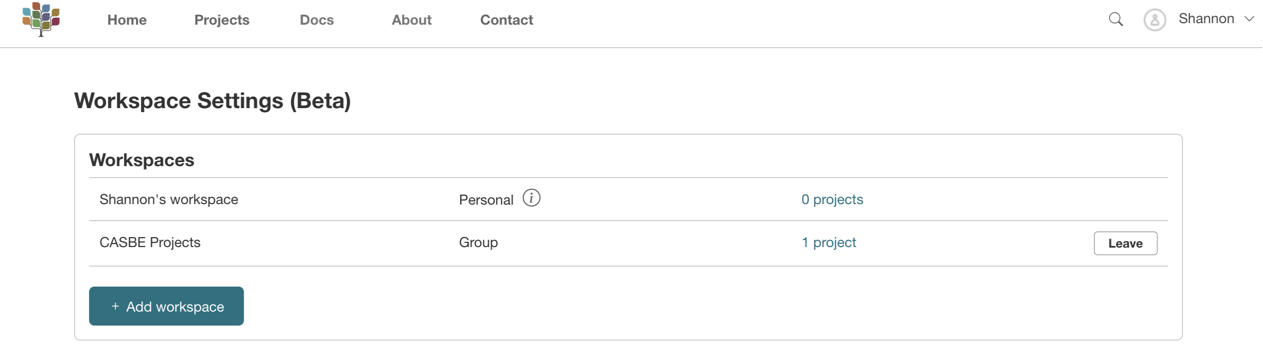
With BESS 2.2, all users have access to the new Workspaces Beta feature in BESS.
# What is a Workspace?
Workspaces allow for projects to be easily shared between collaborators - ideal for organisations where multiple people or multiple consultants work on the one project. With Workspaces, shared account logins are no longer required as users can access common projects.
All BESS projects now belong to a Workspace. By default, a project belongs to your personal workspace (see below). New Workspaces can be created for new projects to live in, or existing projects to be moved into.
Your account can belong to one or more Workspaces, and Workspaces can have any number of users in them. Users in a workspace have access to projects in that Workspace.
# Managing Workspaces
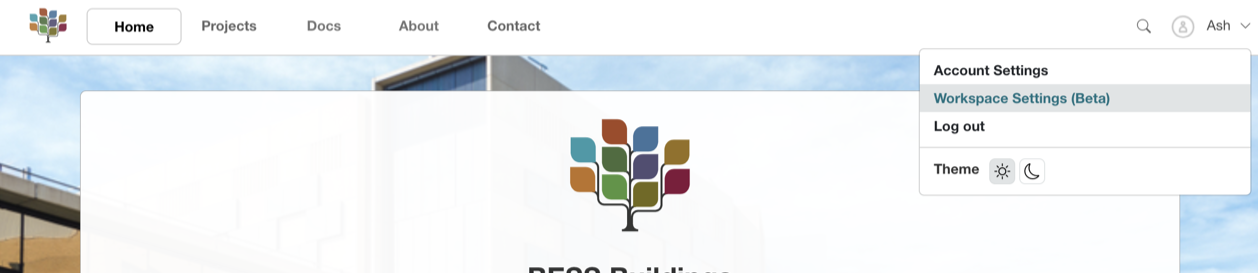
Your Workspaces can be accessed and managed from the User drop-down menu in the BESS Navigation bar.
# Personal Workspaces
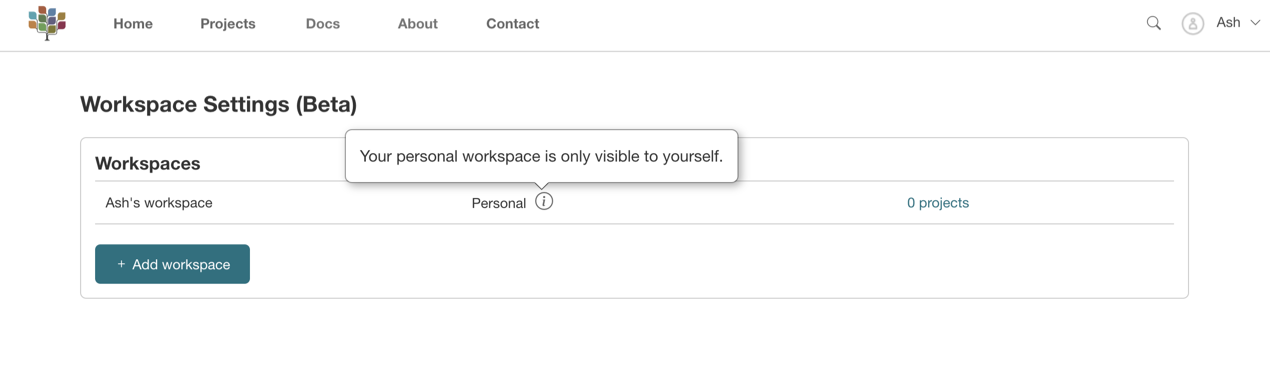
Initially you will have one default workspace, called your Personal Workspace. This is where existing projects will belong and is the default workspace for newly created projects.
You can't remove or transfer ownership of your personal workspace. You also cannot invite other users to your personal workspace, but you can share individual projects within this workspace.
# Group Workspaces
You can create new workspaces from the Workspace Settings section. New workspaces are by default 'Group Workspaces' rather than personal workspaces.
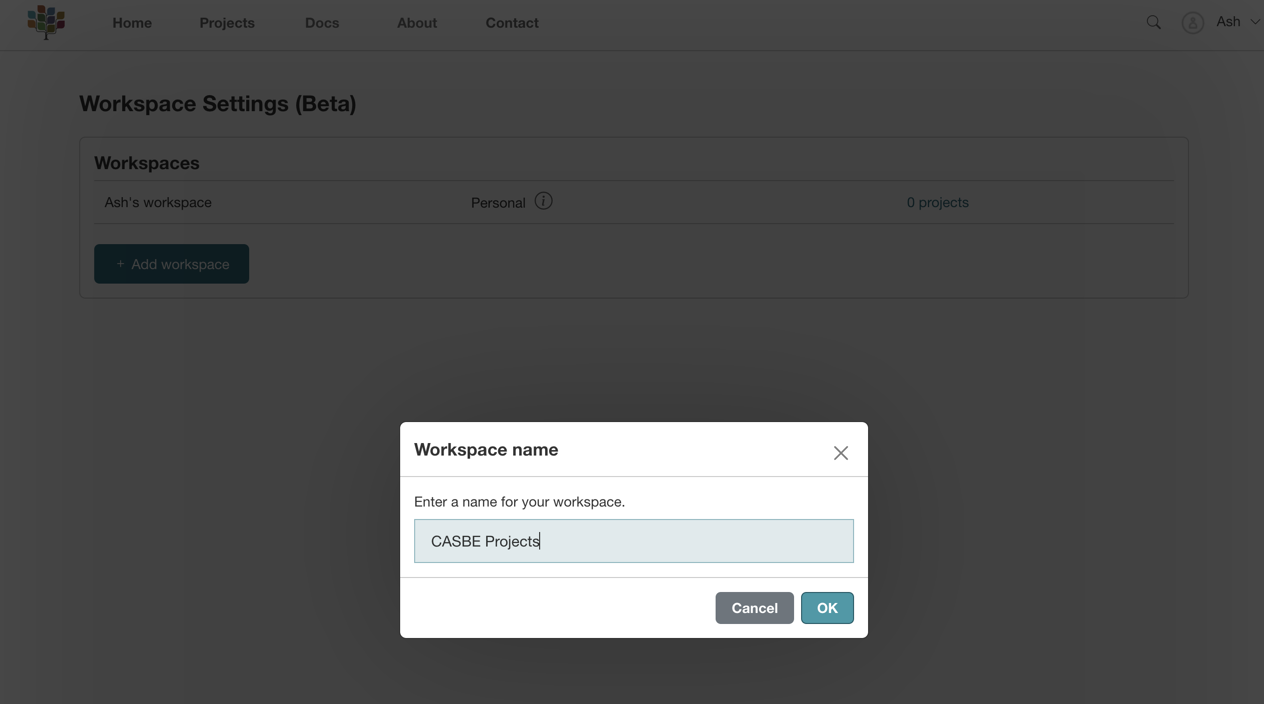
Unlike Personal Workspaces, Group Workspaces can be deleted and transferred to other users.
**It is intended that organisations wanting to share projects internally would create Group Workspaces for this purpose. **
# Inviting users to a Workspace
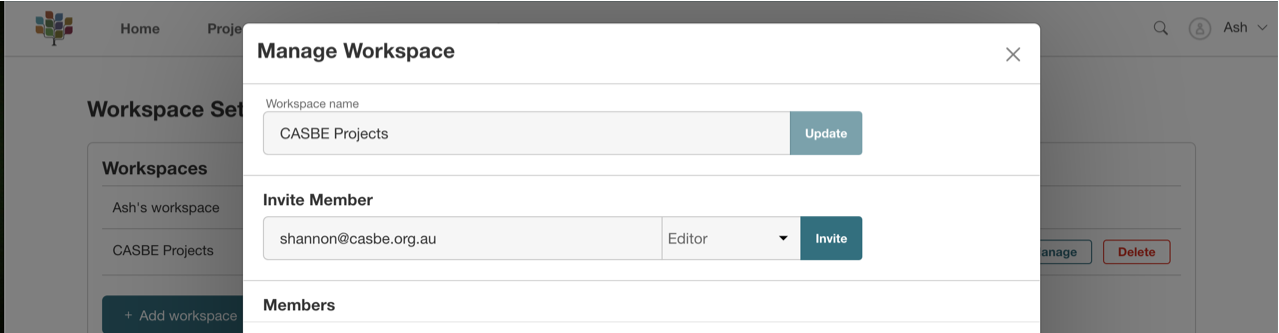
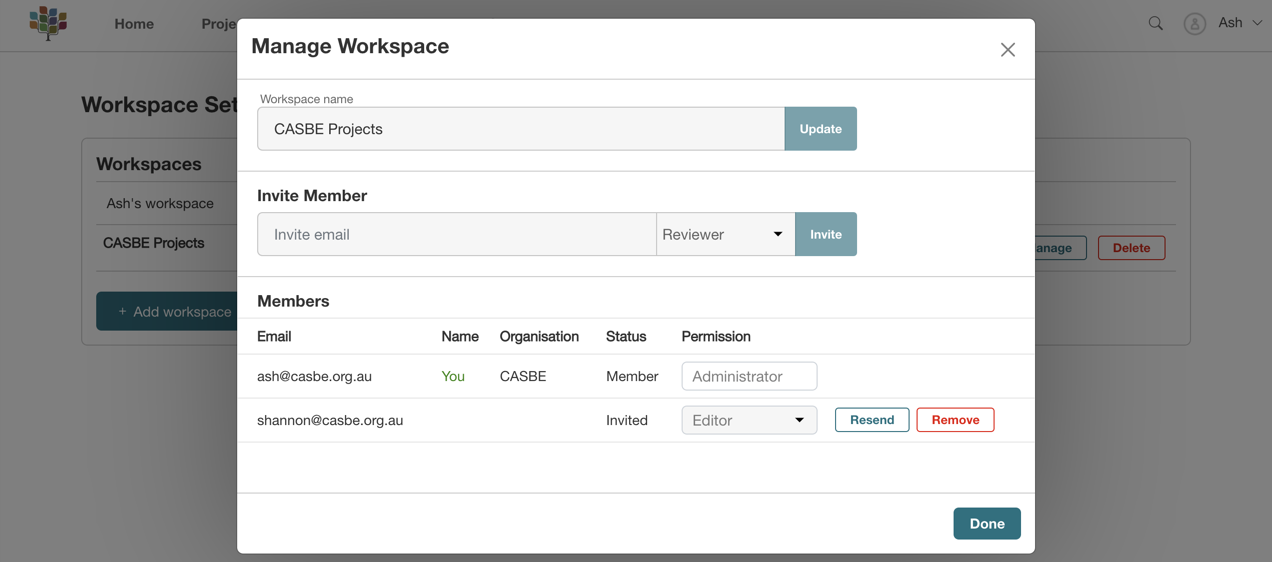
Group workspaces allow for other users to be invited to collaborate on any project belonging to the workspace. Users can be invited from the Manage Workspace modal. All that is required to invite a user is their email address.
If they are not a BESS User, they will be invited to register and then become a member of the workspace.
# Workspace Permissions
When you invite a user to a workspace, you can set what permissions they have for the Workspace and projects in it.
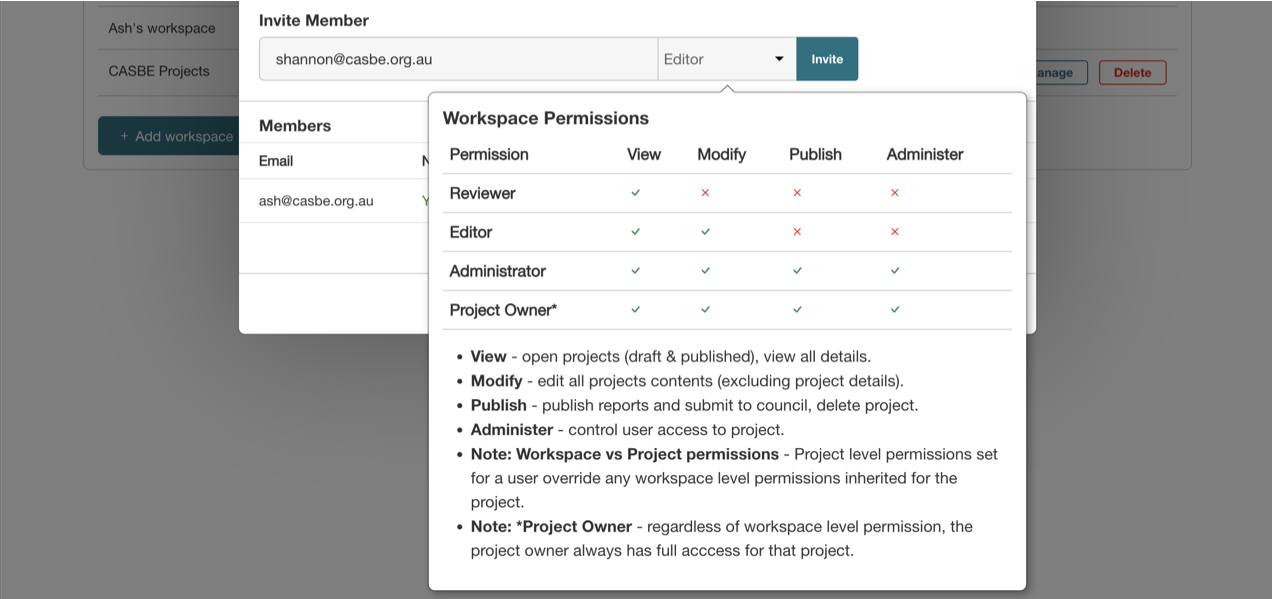
| Permission | View | Modify | Publish | Administer |
|---|---|---|---|---|
| Reviewer | ✓ | X | X | X |
| Editor | ✓ | ✓ | X | X |
| Administrator | ✓ | ✓ | ✓ | ✓ |
| Project Owner* | ✓ | ✓ | ✓ | ✓ |
- View - open projects (draft & published), view all details.
- Modify - edit all projects contents (excluding project details).
- Publish - publish reports and submit to council, delete project.
- Administer - control user access to project.
- Note: Workspace vs Project permissions - Project level permissions set for a user override any workspace level permissions inherited for the project.
- Note: *Project Owner - regardless of workspace level permission, the project owner always has full acccess for that project.
# Accessing Projects
Prior to BESS 2.2, the Projects tab in BESS only showed projects that had been created by the user.
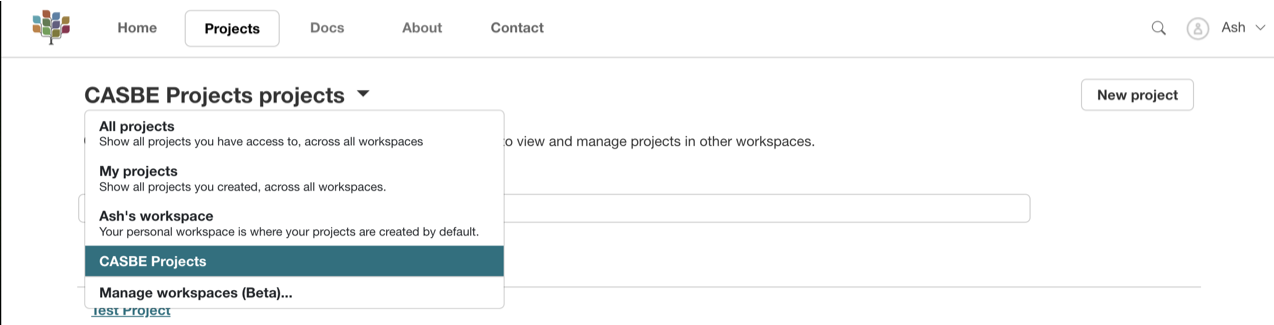
With BESS 2.2, the Projects tab now lists projects beyond the scope of just projects created by the user.
Specifically, you can view:
- My Projects - All Projects created by you (regardless of Workspace)
- All projects - All Projects you have access to, including those shared with you or contained within any Workspace you belong to.
- Personal projects - All Projects they created in your personal Workspace (default workspace for existing projects).
- Workspace Projects - All Projects belonging to a specific Workspace you are a member of.
The view can be toggled from the Projects header top left of screen, below the navigation bar.
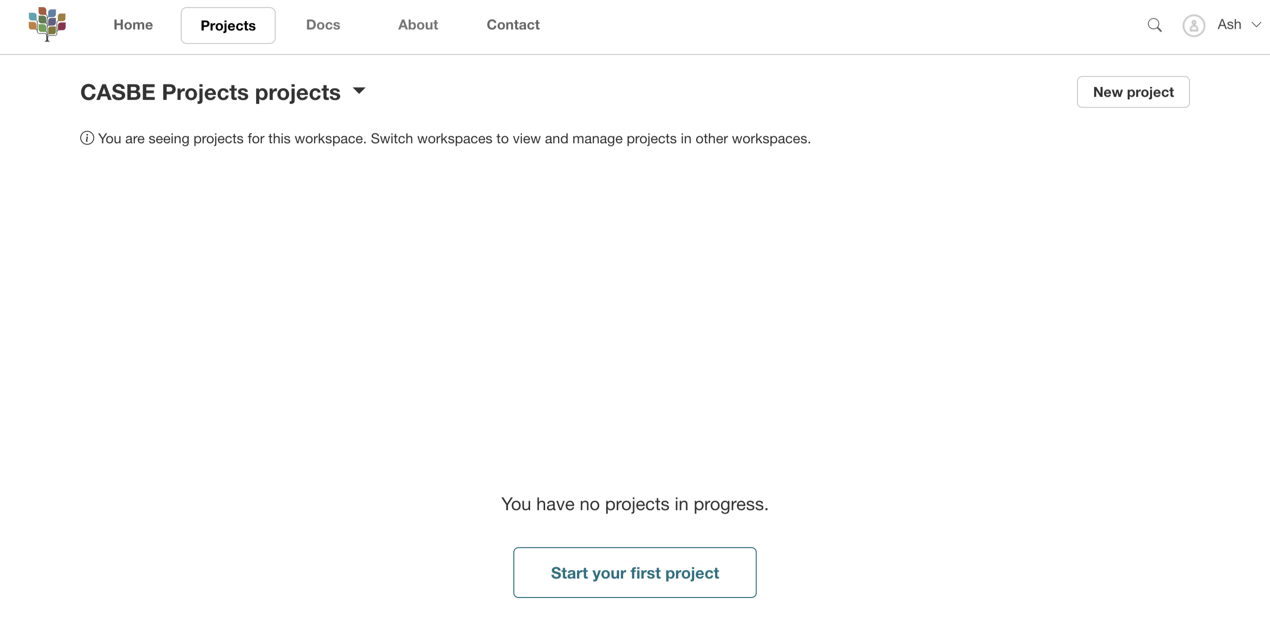
# New Project Workspaces
From BESS 2.2 onwards, when projects are created, you must select which Workspace the project belongs to. By default, it will use the current workspace you were last in (or otherwise your personal workspace).
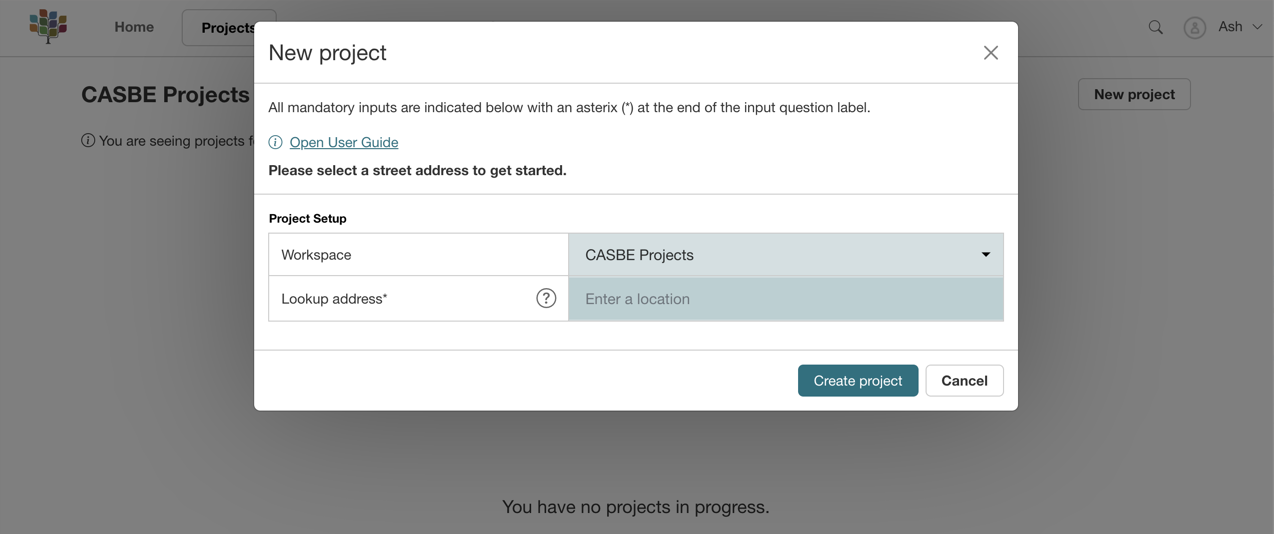
# Project Ownership, Workspace and Permissions
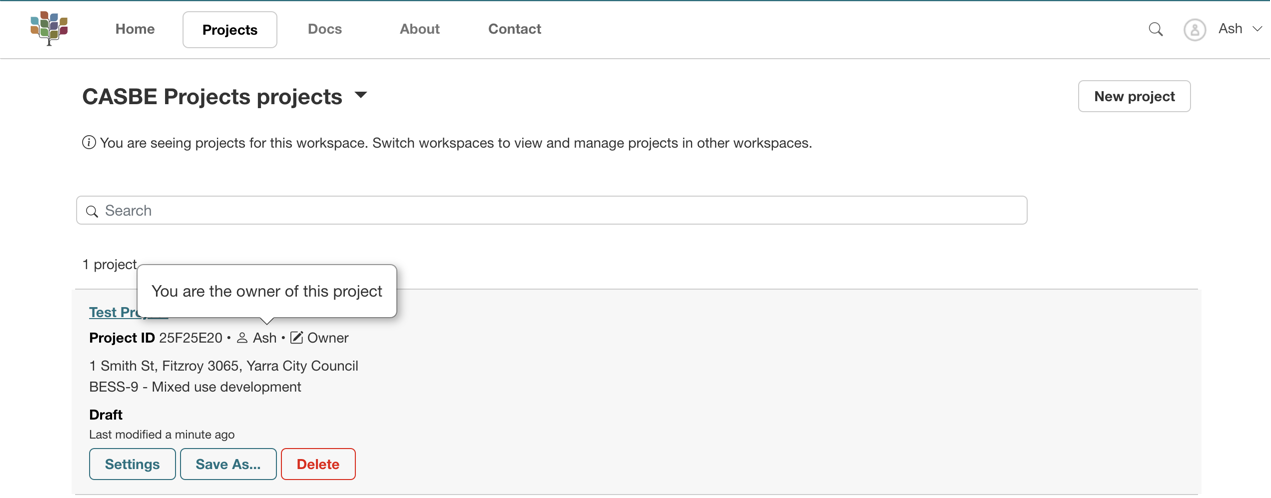
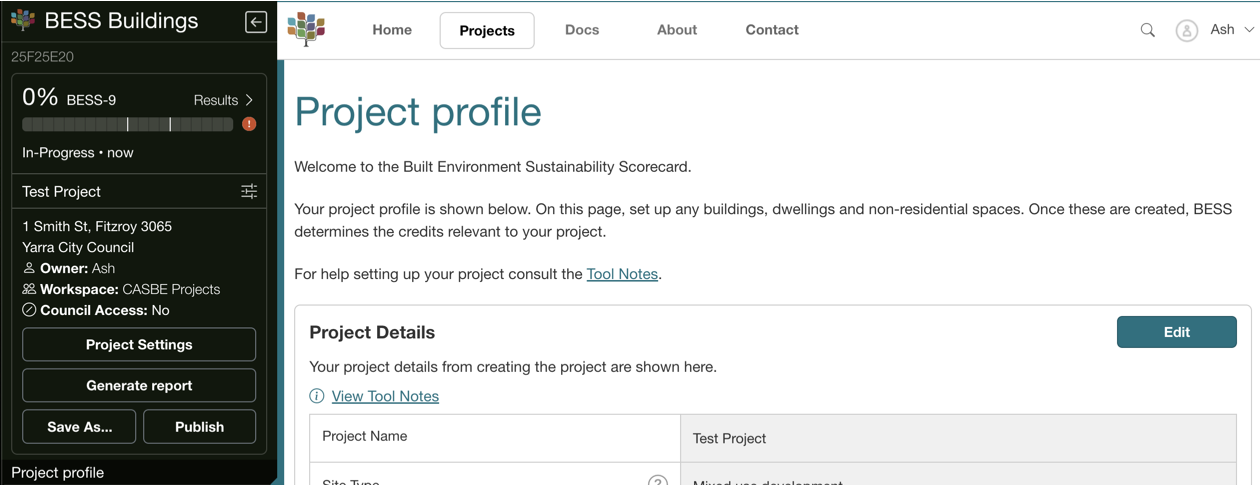
The Projects list and the individual Project pages now show who owns the project, the workspace it belongs to, what permission level you have as the user, and whether Council access is enabled.
# Project Settings
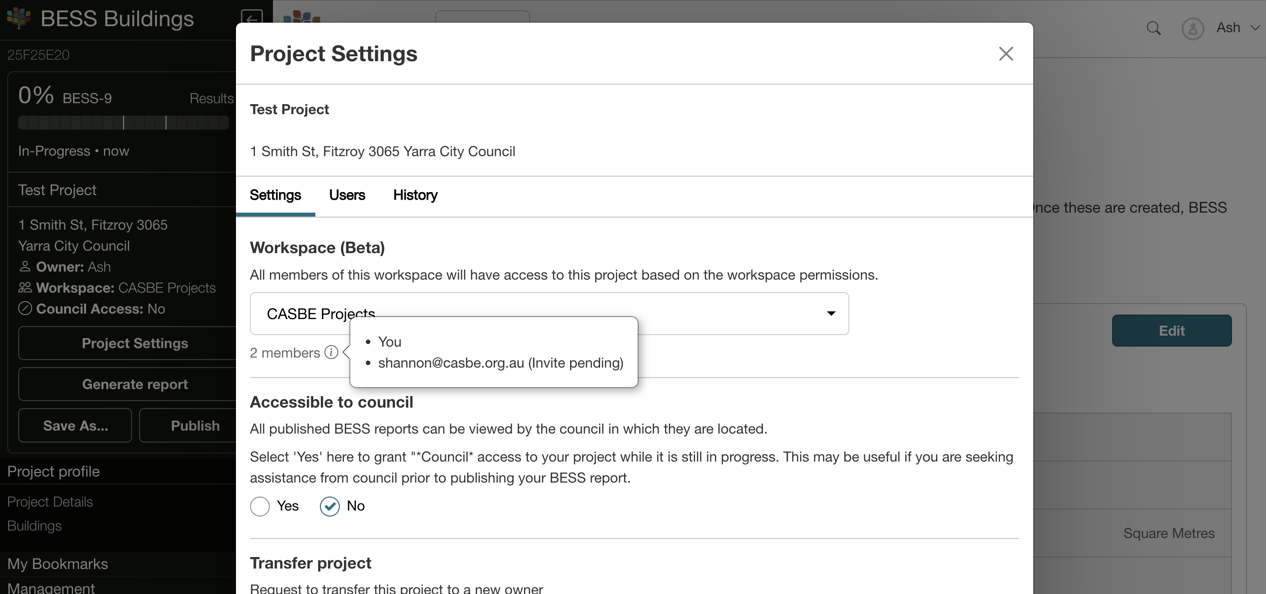
The Project Settings modal allows project owners and administrators to further manage project access. Here the project workspace can be changed, council access setup or the project can be transferred to another user.
# Users
As an alternative to Workspaces, users can be invited to collaborate on individual projects. The recommended approach is to use Workspaces, but if you want to give limited access to a single project, then Project Settings can be used instead.
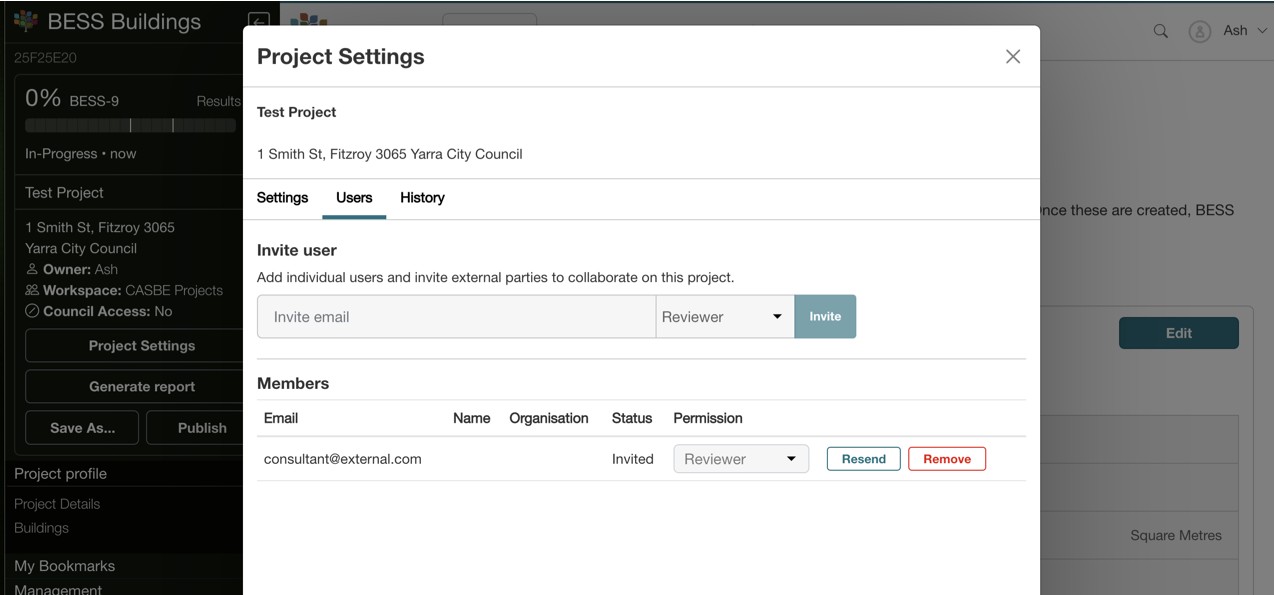
Like Workspaces, invited users can have their permission level set. See above for a list of permissions and what implications this has on projects.
# History
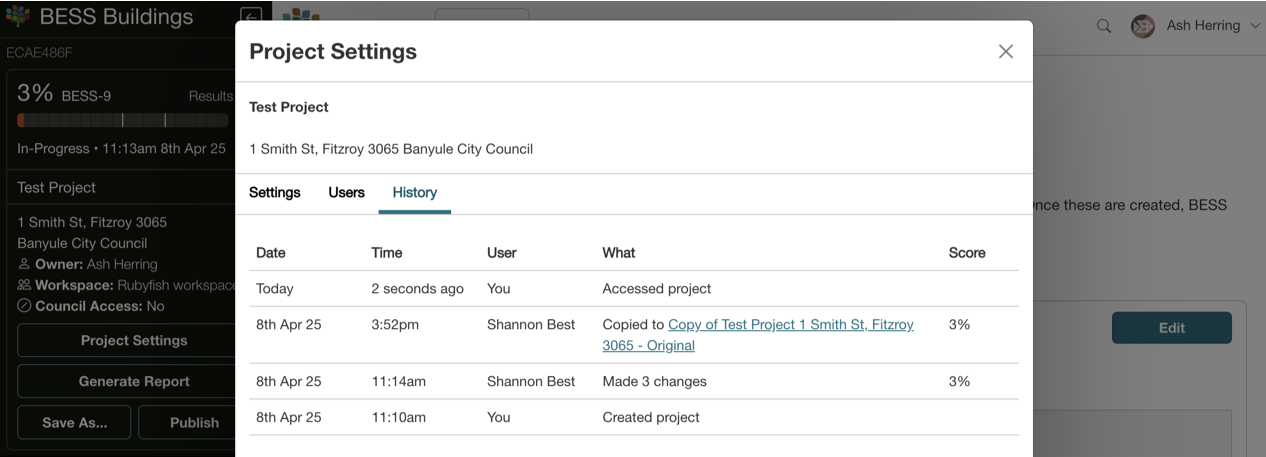
From BESS 2.2 onwards, projects create and retain an audit log of who accessed the project, when they did it and what changes they made.
# Transferring projects
From Project Settings you can transfer a project to a different owner. This can be an existing BESS user, otherwise the invited party will be required to register an account prior to taking ownership.
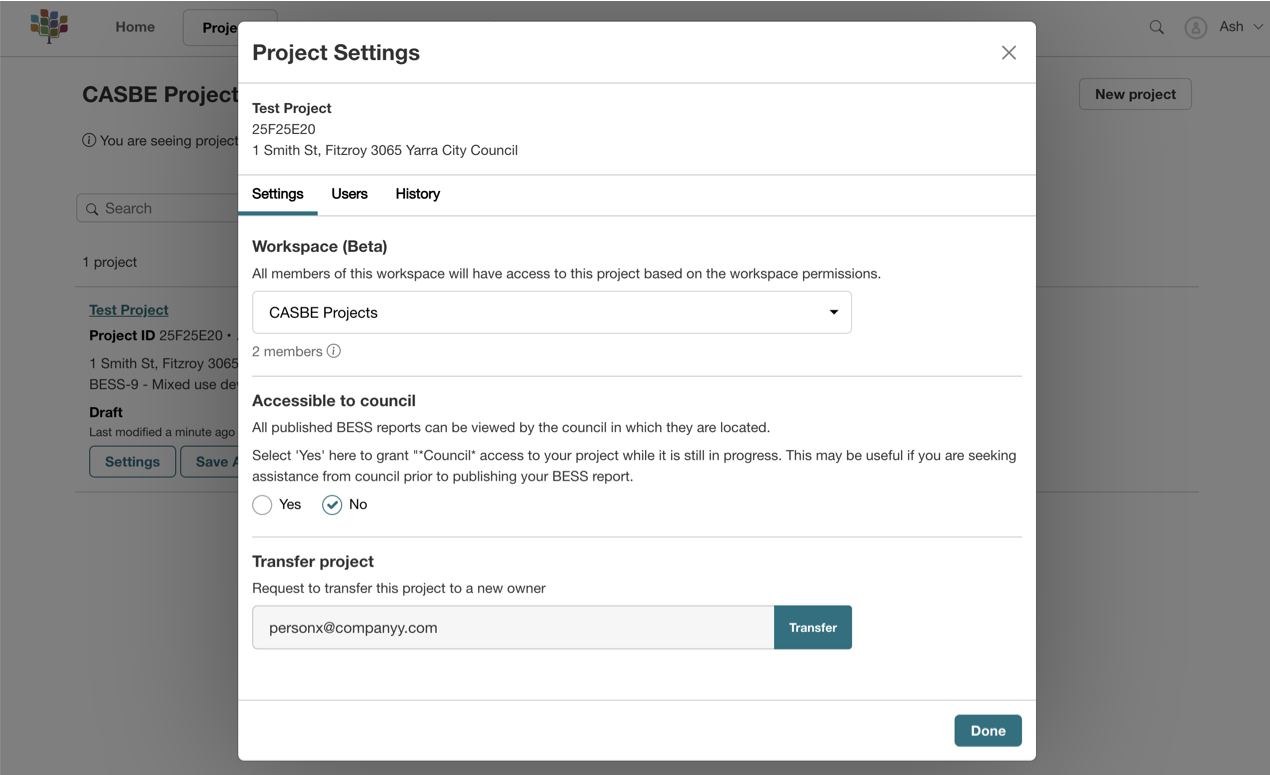


Once transferred, the new party becomes the project owner. The old project owner and existing users will continue to have access to the project, unless the new owner explicitly removes them.
# Accepting Invites
When you are invited to a Workspace or an individual project, you will receive an email with a link to accept the invite. You can also see invites when logged into BESS. There will be a notification number badge next to your user name in the navigation bar. Open the user menu for a summary of pending invitations.
Example workspace invite in navigation bar:

Example workspace invite to review:
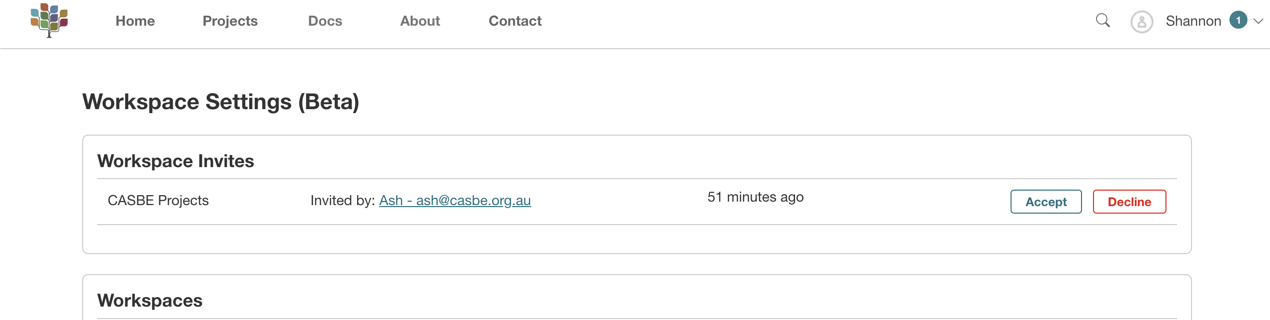
Once accepted the workspace shows up in your list of workspaces. You can opt to leave the workspace at any stage.